
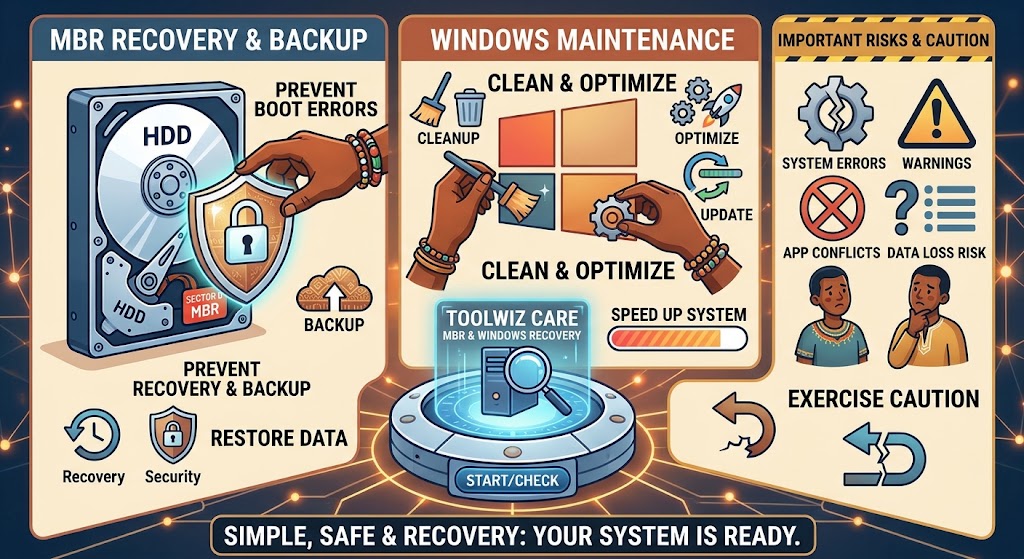

Toolwiz Care is a Windows maintenance package that brings several routine system tasks into one place. Its collection of modules includes tools for handling the master boot record (MBR), managing registry entries, and controlling which programs launch at startup. Rather than presenting these functions as a guided repair sequence, the program exposes them through a compact set of menus and utilities. This can make frequently used options easy to locate for people who already understand the task they are about to perform. The layout is functional and relatively straightforward, although it reflects an older generation of desktop software.
The software dates to 2017, and there are no visible signs of recent updates. That matters when assessing both its interface and its usefulness on current versions of Windows: an older maintenance utility may continue to work in some established environments, but its age means users should not assume that every module has been tested against newer systems. Toolwiz Care is best viewed as a set of direct-access utilities rather than a modern, actively maintained support product. Its uncomplicated presentation may suit experienced users, but it offers less context and guidance than newer tools designed to walk users through troubleshooting.
On Windows 11, use should be especially limited and deliberate. Consider the software only when MBR repair is genuinely required, and check compatibility with the specific system configuration before running it. Changes to boot records, registry data, or startup settings can affect whether Windows starts correctly and how it behaves, so users should understand the consequences and have an appropriate backup or recovery option available. Toolwiz Care’s appeal is direct access to system tasks; that same low-level access, combined with the absence of visible recent updates, calls for caution. It is not a general recommendation to run every maintenance module on a current PC.
Toolwiz Care’s Tools section includes utilities for inspecting and managing the Master Boot Record (MBR), the sector that stores boot-related information used when a computer starts. The application can read the MBR currently present on a drive and save its contents as a backup file. Keeping a copy made while Windows is starting normally provides a reference that may be useful if the boot sector is later damaged or changed by an unwanted program, system problem, or bootloader adjustment.
If the MBR has been altered, the restore function can write data from a previously saved copy back to the drive. Toolwiz Care also offers a comparison feature that displays binary differences between the current MBR and a saved version. This can help a user or technician identify whether bytes have changed and investigate whether those changes correspond to suspected malware activity or an incorrect bootloader configuration. The comparison is an aid to diagnosis rather than proof of what caused a change; differences should be interpreted in the context of the system’s recent updates and configuration.
The utility presents MBR contents in a byte-by-byte hexadecimal view, allowing users to examine the underlying data rather than relying only on a summary. It can also write changes directly to the MBR. That capability requires particular care: this record contains boot-critical code, and an unsuitable edit or a backup from a different disk or configuration may leave Windows unable to start. Before writing anything, preserve a known-good backup in a safe location and verify that it belongs to the intended drive. Prepare a recovery route in advance, such as Windows installation or recovery media, and make sure important files are backed up. If the data is unfamiliar or its origin is uncertain, avoid manual edits and seek qualified assistance. These precautions reduce the chance that an attempted repair will create a more serious startup failure.
Beyond recovery tasks, Toolwiz Care includes maintenance utilities for several distinct areas of Windows. Registry backup and restoration are intended to preserve a saved configuration state before changes are made and allow that state to be restored if a later adjustment causes problems. A backup can provide a useful fallback, but it is not a substitute for a broader system backup, and it should be stored where it remains accessible if Windows becomes difficult to start. Users should confirm that a restore point or other recovery option is available before making significant system changes.
The network repair module is designed to reset selected TCP/IP settings and address common connectivity faults related to DNS, Winsock, or network adapter configuration. Such resets may help when a connection problem follows a software change or misconfiguration, but they can also remove custom settings. For example, computers using a manually assigned IP address, proxy, or specialized DNS configuration may require those details to be entered again. It is therefore sensible to record relevant network settings and use the repair function only when there is a specific issue to investigate, rather than as routine maintenance.
Disk cleanup removes temporary files and cached data from supported Windows locations, potentially freeing storage space. Users should review the categories offered and avoid deleting files they need, especially where an application relies on a cache or temporary work data. Registry optimization and defragmentation are intended to reorganize registry data; they do not clean files from the disk or repair network settings. Any performance benefit can vary by system, and modern Windows installations may show little noticeable improvement from registry reorganization. These tools affect different parts of the operating system, so they should not be treated as interchangeable fixes or run indiscriminately. On a stable computer, making unnecessary changes can introduce avoidable problems. Select a utility to match a clear need, preserve backups, and check the result before considering further maintenance.
Toolwiz Care’s boot analysis module helps users examine what happens during Windows startup. It records startup timing and lists processes initialized as the system loads, providing a basic record of the startup sequence. This information can help identify whether delays coincide with particular applications or services, although timing alone does not establish the cause. The startup management module provides a complementary view: users can review autostart entries and delay selected components rather than allowing every item to launch immediately. Used cautiously, these features can help distinguish routine background activity from entries that merit further investigation before changes are made.
Startup diagnostics address performance, while the MBR and recovery tools are relevant when boot structures are damaged and Windows cannot start normally. A sensible process begins by documenting the symptoms and recording relevant system details or preserving the current MBR state where the available tools support it. Then change only one startup item or setting at a time, restart, and confirm whether the result is better or worse before proceeding. Keeping notes about each change makes it easier to reverse a choice and reduces uncertainty when diagnosing the next issue. If the system is unstable, prioritize a reliable backup and an appropriate recovery option instead of experimenting with several changes at once.
Toolwiz Care may offer convenience to experienced users who want startup controls and maintenance utilities in one place, but its maintenance status is outdated and its guidance is limited. That makes careful judgment especially important: direct edits to boot data, the registry, or network settings can have immediate consequences, including preventing startup or disrupting connectivity. A poorly understood change may complicate recovery rather than solve the original problem. Users should avoid modifying entries merely because they are unfamiliar, and should verify what a component does before delaying or disabling it. Anyone unfamiliar with these areas should favor current, supported Windows recovery methods or seek qualified help, particularly when boot data is involved or the computer contains important files without a recent backup.